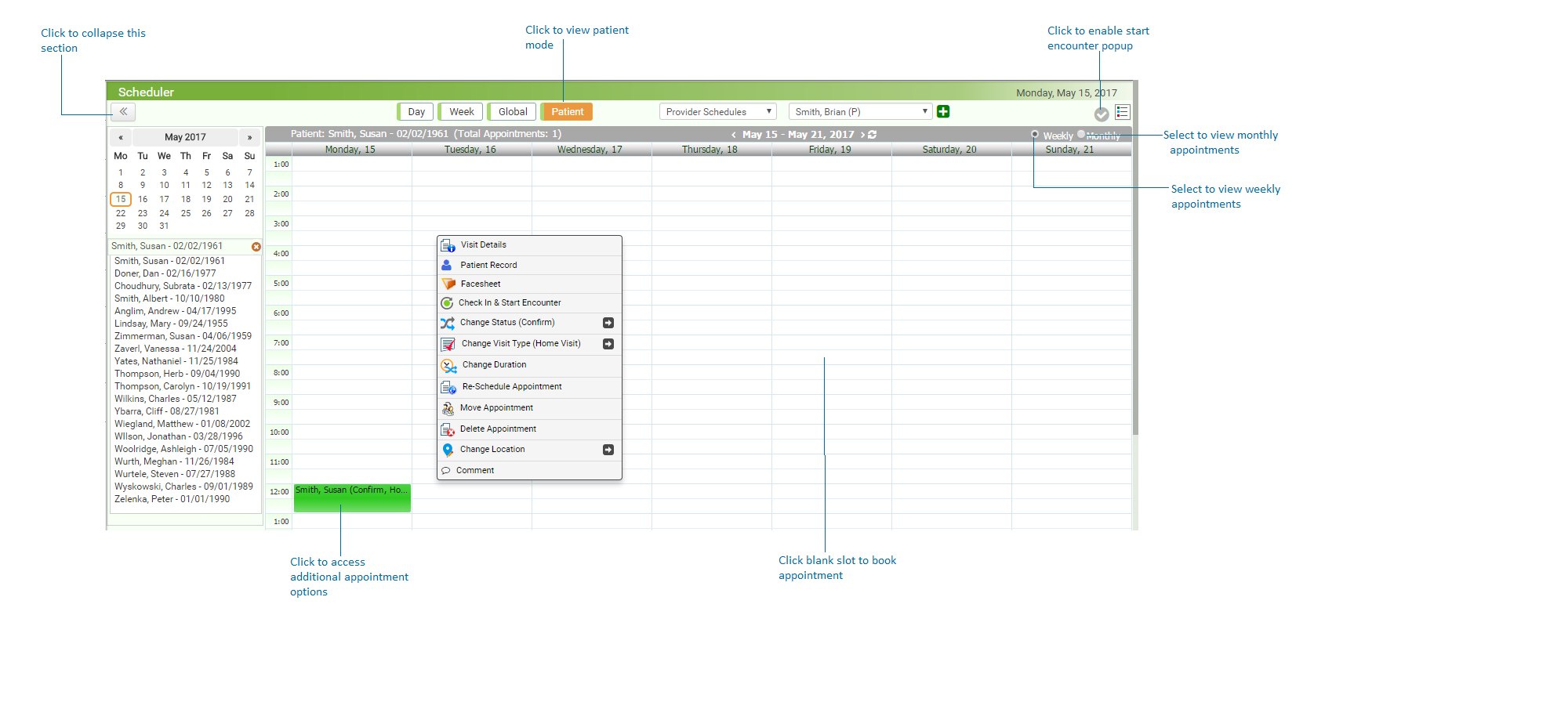
The Patient mode of the Calendar view is designed to display the complete list of patient’s visits on weekly or monthly basis in the calendar layout. For easy identification, appointments are highlighted with different colors as per Visit Type. Using Patient mode, you can:
| • | View the appointment details (status, visit type, and duration) upon hovering mouse over appointment. |
| • | Access additional options (such as view Visit Details pop-up, start encounter, collect copay, start superbill) to work with appointments. |
To work with the Patient mode:
| 1. | From the top menu items, click Scheduler. |
| 3. | Select the Patient mode from the top of the screen. |
| 4. | In the Patient field, start typing the patient name and select using smart search options. |
| 5. | By default, appointments of current week/month are displayed. Change the duration, if required. |
| 6. | To access additional options for respective appointments (such as, view visit details pop up, start encounter, start superbill, and so forth), click the appointment. |
| 7. | To view copay details for the appointment, hover mouse over the Expected Copay  icon on the right. icon on the right. |